
Save Web Pages Now.
Print Them When Ready.
Stop printing entire websites you do not need. Save web pages and PDFs with one click, pick only the pages you actually want, and print them all at once when it works for you.
Windows 10/11 • 93 MB • Takes 30 seconds to install
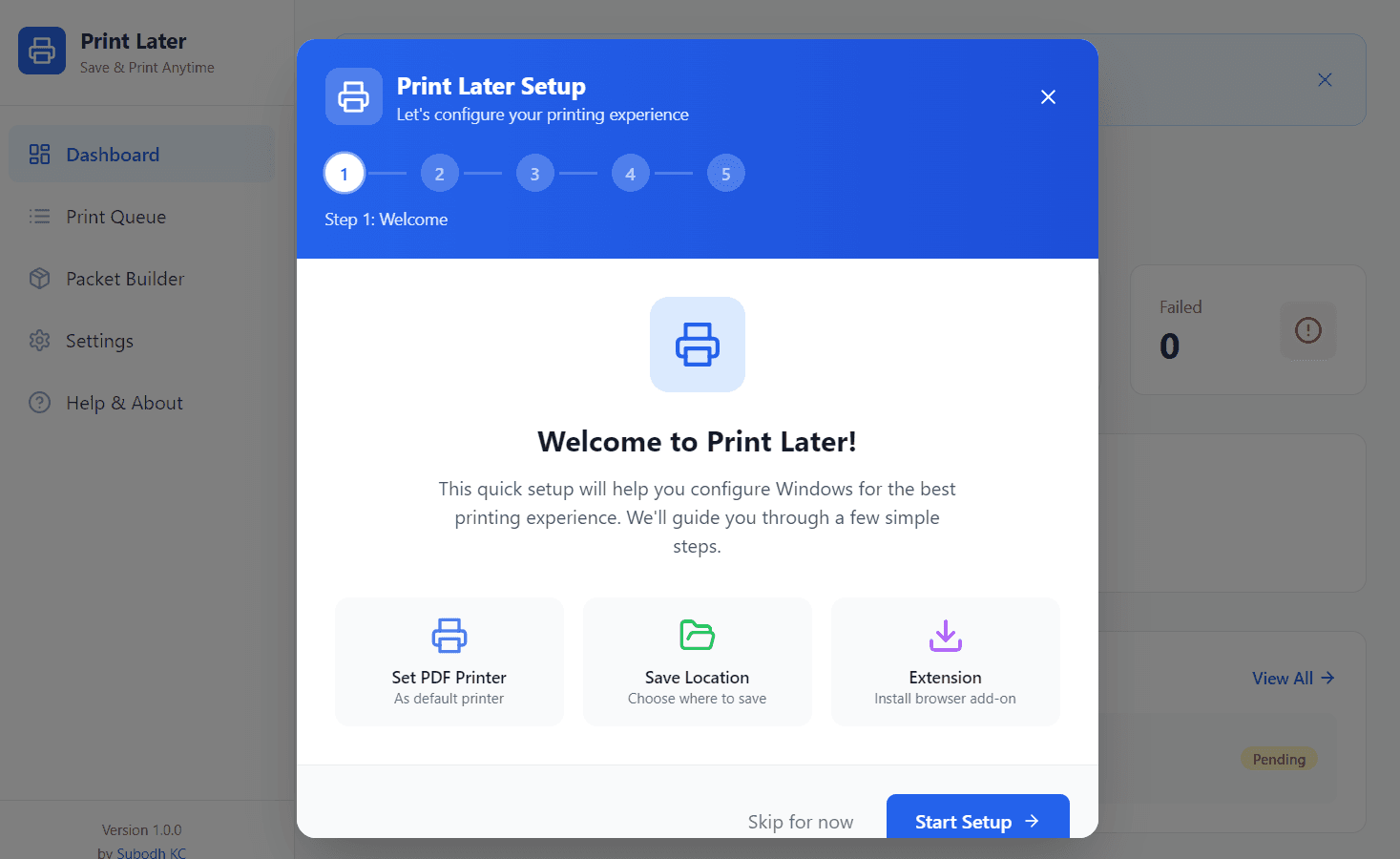
How to Get Started in 30 Seconds
No technical skills needed. Three simple steps.
Download and Install
Click "Get Free Download" above. Open the file and follow the simple setup wizard. Done in under a minute.
Save Pages You Want
Two ways to save: Click the Print Later icon in your browser toolbar and hit "Save to Print Queue" for instant capture. Or press Ctrl+P in any browser, select "Microsoft Print to PDF", and save to your designated folder. Print Later auto-imports it into your queue. You can also import any existing PDF from your computer.
Print When Ready
Open Print Later. Pick the pages you need from each saved page. Combine them into one print job and send to your printer.
Note: Windows may show a "Windows protected your PC" message because the app is free and not code-signed. Click "More info" then "Run anyway" to continue. The app is safe and open source - you can verify the code on GitHub.
A Smarter Way to Print From the Web
Print Later is not just a print queue. It is a productivity tool that helps you save time, waste less paper, and stay organized.
Two Ways to Save Pages
Method 1: Click the Print Later icon in your browser toolbar and hit Save. The page is captured instantly. Method 2: Press Ctrl+P in any browser, select "Microsoft Print to PDF", and save the file to your designated folder. Print Later watches that folder and auto-imports the PDF into your queue. No manual import needed.
Your Print To-Do List
Everything you saved sits in one list. Search by name, sort by date, filter by status (pending, printed, failed). Add tags to organize documents by project, class, or client. Think of it as a to-do list for your printer.
Pick Only the Pages You Need
Only need pages 3 through 5 from a 50-page document? Select just those pages. Stop wasting paper on cover pages and table of contents you do not need.
Combine Pages Into One Print Job
Take pages from different websites and existing PDFs on your computer. Combine them into a single print job. Perfect for meeting handouts, research packets, and study materials.
Import Existing PDFs Too
Print Later is not just for web pages. Import PDF files from your computer and treat them the same way - pick pages, combine with web pages, and batch print everything together.
Always Running, Never In the Way
Print Later sits quietly in the corner of your screen. Click it anytime to see your saved pages. It does not slow down your computer.
Your Files Stay on Your Computer
Nothing leaves your computer. No cloud uploads, no tracking, no account needed. Your saved pages are yours alone.
Print to Paper or Save as PDF
Send your saved pages to any printer on your computer. Or save them as a PDF file instead. Choose color or black and white, single or double-sided, and how many copies you need.
Your Documents Never Leave Your Computer
We built Print Later because we were tired of apps that spy on you. Your documents are your business. Nothing gets uploaded, nothing gets tracked, and no one needs your email to use the app.
Our Promise to You
Print Later is built on a simple idea: your documents belong to you. We have no access to your files, no tracking, and no interest in your data. Ever.
How It Works
Three simple steps from browsing to printed pages. No complicated setup, no technical knowledge needed.
Save Pages While You Browse
Two ways to save. Fast way: Click the Print Later icon in your browser toolbar and hit "Save to Print Queue" - the page is captured instantly. Classic way: Press Ctrl+P in any browser, choose "Microsoft Print to PDF", and save the file to your designated folder. Print Later watches that folder and auto-imports the PDF into your queue automatically. You can also import any existing PDF from your computer. Keep browsing and save as many pages as you want.
Organize and Pick Your Pages
Open Print Later anytime. See all your saved pages in one list. Search by name, sort by date, filter by status (pending, printed, failed), and add tags to organize by project or client. Pick exactly which pages you want from each document. Skip the cover pages and junk you do not need.
Print Everything at Once
Combine pages from different websites and PDFs into one print job. Choose color or black and white, single or double-sided, and how many copies. Click print and get a clean, organized stack of paper. Or save it all as one PDF file instead.
Why Not Just Use "Save as PDF"?
Save as PDF is fine for one page. Print Later is built for the real world where you need multiple pages from multiple sites.
Save as PDF
- One file per page. No way to combine them later.
- No way to pick specific pages from a long document.
- Files scattered across your Downloads folder.
- No search, no sorting, no organization.
- You still have to open each file and print it one by one.
Print Later
- Save pages from different sites into one organized list.
- Pick only the pages you need from each document.
- Search and sort all your saved pages in one place.
- Combine pages into one print job and print once.
- Saves paper, saves time, keeps you organized.
Think of it this way: Save as PDF is a stapler. Print Later is a filing cabinet with a printer attached.
Better Than Taking Screenshots
Screenshots capture images. Print Later captures real text that prints cleanly.
Screenshots
- Image only - text is not selectable or searchable.
- Low quality when printed - looks blurry on paper.
- One image per screenshot. No way to combine them.
- Long pages get cut off or need multiple screenshots.
- Files scattered in your screenshot folder with random names.
Print Later
- Captures real text - prints sharp and clear on paper.
- Full page captured, no matter how long.
- Searchable list - find any saved page by name.
- Combine multiple pages into one clean print job.
- Pick only the pages you need. No wasted paper.
A Clean Interface to Manage Everything
Open Print Later anytime to see all your saved pages, organize them, and print when ready.
Dashboard
See an overview of your print queue at a glance. Quick actions to print, preview, or delete. Know exactly what is pending and what is already printed.
Print Queue
All your saved pages in one list. Search by name, sort by date, filter by status. Add tags to organize by project, class, or client. Click any item to preview, print, or delete.
Packet Builder
Combine pages from different documents into one print job. Pick which pages to include from each. Name your packet and print it all at once. Perfect for meetings and research.
Print Settings
Choose your default printer. Set color or black and white, single or double-sided, and number of copies. Print to paper or save as PDF. Set your PDF save folder and enable auto-import so any PDF you save with Ctrl+P appears in your queue automatically. Configure once and forget it.
Print Later runs in your system tray (bottom-right corner of Windows). Right-click the icon for quick access to your queue, or double-click to open the full interface.
Who Uses Print Later
Built for anyone who prints from the web and wants to do it smarter.
Students
Save articles and reference pages while you research. Print only the pages you need for class instead of printing everything you find.
Office Workers
Save reports, invoices, and meeting materials from different websites. Print them all at once instead of one at a time.
Legal Professionals
Save case documents and reference materials throughout the day. Put together organized print packets for court and client meetings.
Anyone Who Prints
Stop wasting paper on full-page prints when you only need one section. Stop losing track of what you wanted to print. Print Later fixes both.
Accountants
Save receipts, invoices, and tax documents as you find them. Print everything for your expense report in one organized batch.
Real Estate Agents
Save listing pages, contracts, and property details from different sites. Print a clean packet for client meetings and showings.
Teachers
Save worksheets, articles, and reference materials from different sites. Combine into one print job for your class handout packet.
HR Teams
Save policy pages, training materials, and compliance documents. Print onboarding packets with only the pages each employee needs.
How Print Later Compares
The honest differences. Pick the right tool for your workflow.
Print Later vs. Save as PDF
Print Later wins: Queue multiple pages, pick exact pages from each, combine into one print job. Save as PDF creates one file per page - no queue, no page selection, no batch printing.
Save as PDF wins: Built into every browser, no install needed. If you just need to save one page as a PDF file, use Save as PDF. If you need to organize and batch print multiple pages, use Print Later.
Print Later vs. Pocket / Read Later Apps
Print Later wins: Designed for printing. Page selection, packet builder, batch printing to a physical printer. 100% local - no cloud, no account.
Pocket wins: Cross-device sync, mobile apps, offline reading on phone/tablet. If your goal is reading later on multiple devices, use Pocket. If your goal is printing organized packets from web pages, use Print Later.
Print Later vs. Vovsoft Print Multiple Web Pages
Print Later wins: Free and open source. Browser extension for one-click save. Page selection within documents. Packet builder for combining pages. No trial limitations.
Vovsoft wins: Can print from a list of URLs without opening each page. If you need to batch print URLs you haven't visited yet, Vovsoft may fit better. Print Later is designed for the "save while browsing, print later" workflow.
Frequently Asked Questions
Is Print Later really free?
Yes. Print Later is 100% free and open source. No premium tier, no hidden costs, no in-app purchases. The source code is available on GitHub for anyone to audit or contribute to.
Does Print Later work offline?
Yes. Print Later runs entirely on your local machine. No internet connection is required after installation. Your saved pages and print queue are stored locally on your computer.
Can I save pages from any browser?
Yes. The Print Later browser extension works with Chrome and Edge for one-click saving. For Firefox or any other browser, press Ctrl+P, select "Microsoft Print to PDF", and save the file to your designated folder. Print Later watches that folder and auto-imports the PDF into your queue automatically. All pages go into the same queue regardless of which browser you used. You can also import any existing PDF from your computer.
How is my data stored?
All captured pages are stored locally on your computer in your user directory. Nothing is uploaded to the cloud, no telemetry is sent, and no account is required. You can delete your queue at any time.
What operating systems are supported?
Print Later currently supports Windows 10 and Windows 11 (64-bit). Mac and Linux versions are being considered for future releases.
Why does Windows show a warning when I install?
Print Later is free and open source, so it is not code-signed with an expensive Microsoft certificate. Click "More info" then "Run anyway" to install. The app is safe - you can read the source code on GitHub to verify.
How is this different from Save as PDF?
Save as PDF creates one file per page with no way to combine them later. Print Later lets you save multiple pages from different sites, pick exact pages from each document, combine them into one print job, and batch print to a physical printer. Think of it as a productivity tool for printing, not just a PDF saver.
Can I print only specific pages from a long document?
Yes. Open any saved document in Print Later and select exactly which pages you want. If you only need pages 3-5 from a 50-page PDF, select just those pages. Stop wasting paper on cover pages, tables of contents, and sections you do not need.
Is this a good Pocket alternative for printing?
If your goal is reading articles later on your phone, Pocket is better - it syncs across devices. If your goal is organizing web pages and printing them as clean packets on paper, Print Later is better. It is purpose-built for the print workflow with page selection, packet building, and batch printing.
Is Print Later just a print queue or a productivity tool?
Print Later is a productivity tool, not just a print queue. It helps you save time by collecting pages while you browse, waste less paper by picking only the pages you need, and stay organized by keeping everything in one searchable list. Think of it as a to-do list for your printer.
Can I import existing PDF files from my computer?
Yes. Print Later is not just for web pages. You can import PDF files from your computer and treat them the same way as saved web pages. Pick specific pages, combine them with web pages, and batch print everything together in one job.
How is this better than taking screenshots?
Screenshots capture images, which means the text is not selectable or searchable, and they look blurry when printed. Print Later captures the actual page content as real text, so it prints sharp and clear. You also get a searchable list, page selection, and the ability to combine multiple pages into one print job.
Can I save pages as PDF instead of printing to paper?
Yes. When you are ready to print, choose "Microsoft Print to PDF" as your printer. Print Later will save your pages or packets as a PDF file instead of sending them to a physical printer. You get the organization benefits of Print Later with the portability of PDF.
Start Printing Smarter Today
Download Print Later for free. Save time, waste less paper, and stay organized. No signup needed for the app - just enter your email once to get the download link.
System Requirements
Note: Windows may show a "Windows protected your PC" warning because the app is free and not code-signed. Click "More info" then "Run anyway" to install. The app is safe and open source.
Built in the Open. Improved by Everyone.
Print Later is 100% open source. The full code is on GitHub for anyone to read, verify, and improve. If you have a GitHub account, fork the repo and make it better. Found a bug or have an idea? Open an issue and let us know.
Every star, fork, and issue helps Print Later reach more people who waste less paper. If you find it useful, give it a star on GitHub.